Become a Windows Server Professional with MCSA Training

Gain practical skills in Windows Server, Active Directory, DHCP, DNS, and system administration through hands-on labs and expert guidance. Learn to configure, manage, and troubleshoot enterprise server environments and network services, preparing you for real-world IT roles.

Course Overview

The MCSA Training program is designed for IT professionals and network enthusiasts who want to gain practical expertise in Windows Server administration and enterprise network management. This training emphasizes hands-on experience with Active Directory, DHCP, DNS, and system administration, giving you the skills to efficiently manage and maintain server environments.

Through practical labs and real-world scenarios, you will learn to:
  • Configure and manage Windows Server environments
  • Administer Active Directory users, groups, and policies
  • Set up and troubleshoot DHCP and DNS services
  • Perform server maintenance and monitoring
  • Understand network services, permissions, and basic security practices

Key Benefits:

1️⃣ Hands-On Windows Server Labs

Work with real Windows Server environments, configure Active Directory, DHCP, DNS, and practice essential system administration tasks.

2️⃣ Expert Guidance

Learn from experienced IT instructors with practical knowledge of enterprise network and server management.

3️⃣ Practical IT Skill Development

Acquire essential skills for server administration, network services management, and troubleshooting enterprise IT environments.

4️⃣ Career-Ready Training

Gain the expertise needed for roles like IT Support Engineer, System Administrator, and Network Administrator.

5️⃣ Flexible Learning Modes

Choose between live instructor-led sessions or self-paced learning to fit your schedule and learning style.

6️⃣ Lifetime Access

Replay recorded sessions and lab exercises anytime to reinforce your learning and stay updated on Windows Server skills.

About Microsoft Certification

Course Modules

Module 1: System Fundamentals and OS Configuration
  • System and Servers
    • Identification of System Parts & Their Roles
    • Define BIOS and Its Types
    • Basic Configuration of System BIOS
    • Define OS, Application, and Driver
    • Types of OS (Client/Servers)
    • OS Editions and Comparison
    • Server OS Editions (R1, R2, Standard Edition, Data Center, etc.)
    • Server OS Feature Comparison (2003, 2008, 2012 to 2016)
    • OS Interfaces (Core, GUI)
    • OS Installation, Configuration, and Customization
    • Basic Network Setting on System
  • Virtualization
    • What is Virtualization?
    • Why We Use Virtualization
    • Physical vs Virtual Resources
    • Hypervisor and Their Types
  • Hyper-V
    • Recommended System Requirements for Hyper-V
    • Installation and Configuration of Hyper-V
    • Installing Hyper-V
    • Configuring Virtual Machine
    • Configuring Virtual Networks
    • Virtual Switch and Connection Types (Internal | Private | External)
    • Virtual Disk Types (VHD | VHDX)
    • Fixed and Dynamic Disk Size
    • Generation 1 and Generation 2 Virtual Machine
    • Guest and Host OS
    • Advanced Hyper-V and Customize Settings
    • Virtual and Production Network Integration
    • Hyper-V vs VMware Workstation
    • Designing an Isolated Virtual Lab
  • Networking Essentials
    • Basic Networking Concepts
    • OSI and TCP/IP Models
    • IPv4 & IPv6
    • Network Medium Types (Guided, Unguided)
    • LAN Cable Standards (568B, 568A)
    • LAN Cable Types (Straight, Cross)
  • Designing Network Labs
    • Physical Lab Requirements and Design
    • Virtual Lab Requirements and Design
  • Storage Types
    • DAS, NAS, SAN
  • Hard Disk Types
    • IDE, EIDE, SATA, SCSI, SSD
  • Disk Types
    • Basic, Dynamic Disk
  • Disk Partitioning
    • MBR vs GPT
    • Primary, Extended, and Logical Partitions
  • File Systems
    • FAT16, FAT32, NTFS
  • Disk Geometry
    • Sector, Track, Cylinder, RPM, Buffer, Latency
  • Disk Fragmentation & Defragmentation
  • RAID Configuration
    • RAID-0 (Simple Volume), RAID-1 (Mirror Volume), RAID-5 (Parity Volume)
  • Server OS Roles & Features
    • Standalone, Domain Controller, Member Server
    • Types of Networks: Workgroup-based and Domain-based
  • Active Directory Basics
    • Domain Naming System (DNS)
    • LDAP, Schema, Replication
    • Global Catalog
    • Active Directory Components: Domain, Tree, Forest, Organizational Units (OUs)
  • Active Directory Domain Services
    • Installing and Configuring AD DS
    • Deploying Domain Controller (Promote Standalone Server)
    • Domain Joining (Windows 8/10 Pro, Member Server)
    • Active Directory Management: User, Group, and OU Management
  • Active Directory Administration
    • FSMO Roles
    • FSMO Roles Transferring and Seizing
    • Active Directory Optimization (Defragmentation, Backup, Restore)
  • Group Policy Management
    • User and Computer Policies
    • Scope of Policies (OU, Domain, Sites)
    • Group Policy Preferences
    • Software Deployment, Folder Redirection, USB Drive Blocking
    • Group Policy Starter GPO
  • DHCP Server
    • Installation and Configuration of DHCP Server
    • DHCP Client Configuration
    • DHCP Scope, Lease, Exclusion, Reservation, Relay Agent
  • DNS Server
    • Name Resolving Concepts
    • DNS Zones: Forward Lookup, Reverse Lookup
    • DNS Resource Records: A, MX, SRV, NS, SOA, CNAME, PTR
    • DNS Caching and Forwarder
  • Core Server Management
    • Core Server Installation and Limitations
    • Working on Core Server Using Commands and Utilities
    • Join Core Server to Domain Controller
  • IPv4
  • IPv6
  • System parts identification
  • BIOS Types and Basic BIOS Setup
  • Identification of Server Machines
  • Disk Partitions
  • Hard disk preparation file system FAT/FAT32/NTFS
  • Installation Different Server OS Versions 2003-2016
  • Establish a simple Workgroup base network
  • Configuration & Verification of System Settings
  • Create, modify & Delete Local users & local Groups
  • Share and NTFS permissions deployment and Testing on Local Machine
  • Installation of Active Directory Domain Services
  • Domain Controller Installation & Verification
  • Establish a Domain base network
  • How to Join a Domain using Administrator Account
  • Active Directory User Management
  • Active Directory Group Management
  • Local Security Policy Deployment & testing
  • Group Policy Design, Configure and deploy Group Policy with Testing
  • Installation, Configuration and testing of stand-alone Server
  • Domain Controller Installation, Configuration & Testing of DC
  • Installation, Configuration & Testing of Domain Client
  • ADC installation, configuration, verification and Troubleshooting
  • RODC installation, configuration, verification and Troubleshooting
  • Remove RODC
  • Child Domain installation, configuration, verification and Troubleshooting
  • FSM Roles Verification GUI | CLI
  • FSMO Roles Transferring
  • FSMO Roles Seizing
  • Verification of Forest & Domain Functional Roles
  • Upgrade & Roll back Forest & Domain functional Roles
  • DHCP Server & Client Installation, Configuration, Verification & Troubleshooting
  • DNS Server & Client Installation, Configuration, Verification & Troubleshooting
  • Active Directory partitions
  • Forest & Domain functional level verify, Raise and Roll Back
  • BACKUP & Restore Active Directory
  • Active Directory Optimization
  • Share and NTFS permission configuration
  • How to take ownership
  • User management (GUI and CLI)
  • Group management and group types, global, local, universal
  • Profile local, roaming profile
  • Z: drive Deployment, verification & troubleshooting
  • Quota Deployment
  • Disk Type basic, dynamic and RAID Configuration & Verification
  • Group Policy
  • Deploy Virtual Lab using Hyper-V
  • CORE Server Installation, verification & Basic Working

Career Opportunities

1️⃣ System Administrator

Manage Windows Server environments, maintain Active Directory, and ensure network reliability.

2️⃣ IT Support Engineer

Provide technical support for enterprise systems, troubleshoot server and network issues.

3️⃣ Network Administrator

Configure DHCP, DNS, and network services to maintain seamless enterprise connectivity.

4️⃣ Infrastructure Specialist

Implement server roles, manage resources, and ensure secure, optimized IT infrastructure.

Training Modes

Live Online Training

Self-Paced Training

One to One Training

Frequently Asked Questions (FAQs)

What is the format of the MCSA training?

Our training is available in two modes: live online instructor-led classes and self-paced recorded courses. Live classes include real-time Q&A, demonstrations, and practical labs, while self-paced courses allow you to learn at your own convenience with access to recorded lectures and exercises.

All live online classes are conducted through Microsoft Teams, providing real-time interaction with instructors and seamless access to virtual labs.

All live sessions are led by certified trainers with extensive hands-on experience in Windows Server administration.

You will use practical, hands-on tools to perform all labs safely on your own PC. The main software includes:

  • VirtualBox  or Hyper-V (built into Windows 10/11 Pro) for creating virtual machines

  • Windows Server 2019/2022 for server-related labs

To complete the hands-on virtual lab exercises, you’ll need a system capable of running virtualization software such as VMware Workstation or Hyper-V.

Recommended Specifications:

  • Processor: Intel i5 or higher (with virtualization support enabled)

  • RAM: Minimum 16 GB

  • Storage: At least 250 GB of free space (SSD preferred)

  • Operating System: Windows 10/11 Pro or any OS supporting Hyper-V

  • Internet Connection: Stable broadband for lab downloads and live sessions

Self-paced recordings can be accessed on desktops, laptops, and tablets. Live classes are best attended on a laptop or mobile but laptop for lab access and hands-on exercises.

Yes! Both live and self-paced students get access to virtual labs, practical exercises, and real-world scenarios.

Self-paced students can book live Q&A sessions or follow-up calls with trainers for guidance on complex topics.

You get lifetime access to recorded lectures, labs, and study materials for continuous learning and revision.

Yes! Contact our support team to check availability and options for transferring to a live session.

The complete course runs for 10 weeks (30 sessions) — 3 sessions per week (Friday, Saturday, Sunday).

Is this course online or in-person?

This is a live online course conducted via MS Teams with access to recorded sessions on our LMS (Learning Management System).

Yes! Every session is recorded and uploaded to the LMS for lifetime access.
Absolutely! Labs will be conducted using Cisco Packet Tracer, EVE-NG, and some physical devices.

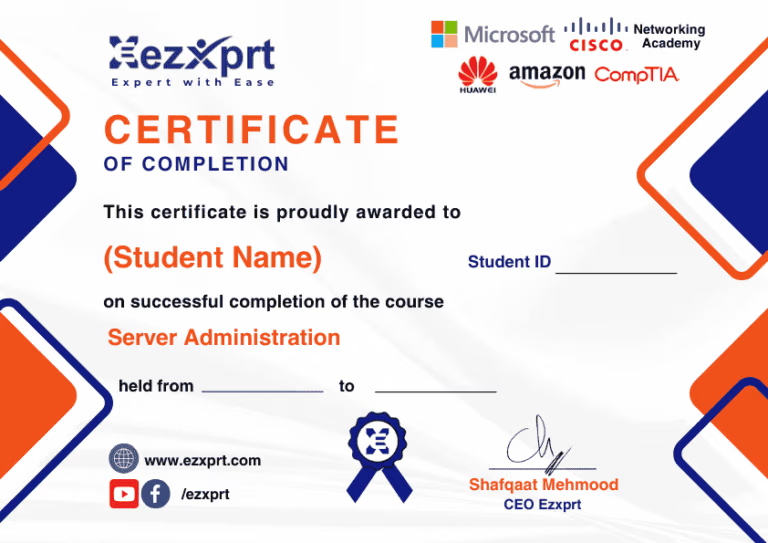
Yes, you’ll receive a Certificate of Completion. Check out form here